Text With Media Section
Overview
Section titled “Overview”The Text With Media Section combines text and media (images, videos, galleries, sliders) in various layouts. It’s perfect for pages that need structured text-media combinations with flexible layout options for different content types.
Fields
Section titled “Fields”Headline
Section titled “Headline”- Type: String
- Required: No
- Purpose: Main heading for the entire section
- Example:
Our ProductsorOur Services
Description
Section titled “Description”- Type: Text
- Required: No
- Purpose: Description for the entire section
- Example:
Discover our range of innovative solutions designed to meet your needs
- Type: Array of
textWithMediaItemobjects - Required: Yes
- Min Count: 1
- Max Count: 10
- Purpose: List of text-media items
Each text with media item contains:
Item Headline
Section titled “Item Headline”- Type: String
- Required: No
- Purpose: Main heading for this item
- Example:
Product Overview
Content
Section titled “Content”- Type: Rich Text Section (
richTextSection) - Required: No
- Purpose: Text content in rich text format
- Note: Supports full formatting, images, links, etc.
Layout Options
Section titled “Layout Options”- Type: Object
- Required: No
- Purpose: Layout configuration for text and media
Layout Type
Section titled “Layout Type”- Type: String
- Default Value:
split - Purpose: Select the layout style for this item
- Options:
- Split Layout (
split) – Text and media side by side - Media Above, Text Below (
mediaAbove) – Media above, text below - Text Above, Media Below (
textAbove) – Text above, media below
- Split Layout (
Split Ratio
Section titled “Split Ratio”- Type: String
- Default Value:
50-50 - Hidden: Yes (when Layout Type is not “Split Layout”)
- Purpose: Split ratio for text and media (only for Split Layout)
- Options:
- 50/50 (Equal) (
50-50) – Equal split between text and media - 60/40 (Text Wider) (
60-40-text) – 60% text, 40% media - 60/40 (Image Wider) (
60-40-image) – 60% media, 40% text
- 50/50 (Equal) (
Split Media Position
Section titled “Split Media Position”- Type: String
- Default Value:
left - Hidden: Yes (when Layout Type is not “Split Layout”)
- Purpose: Position of media relative to text (only for Split Layout)
- Options:
- Media Left, Text Right (
left) - Media Right, Text Left (
right)
- Media Left, Text Right (
Media Type
Section titled “Media Type”- Type: String
- Default Value:
image - Purpose: Choose which media should be displayed alongside the text
- Options:
- Single Image (
image) - Image Gallery (
imageGallery) - Video (
video) - Image Slider (
slider)
- Single Image (
Media Fields
Section titled “Media Fields”Fields are conditionally displayed based on the selected Media Type.
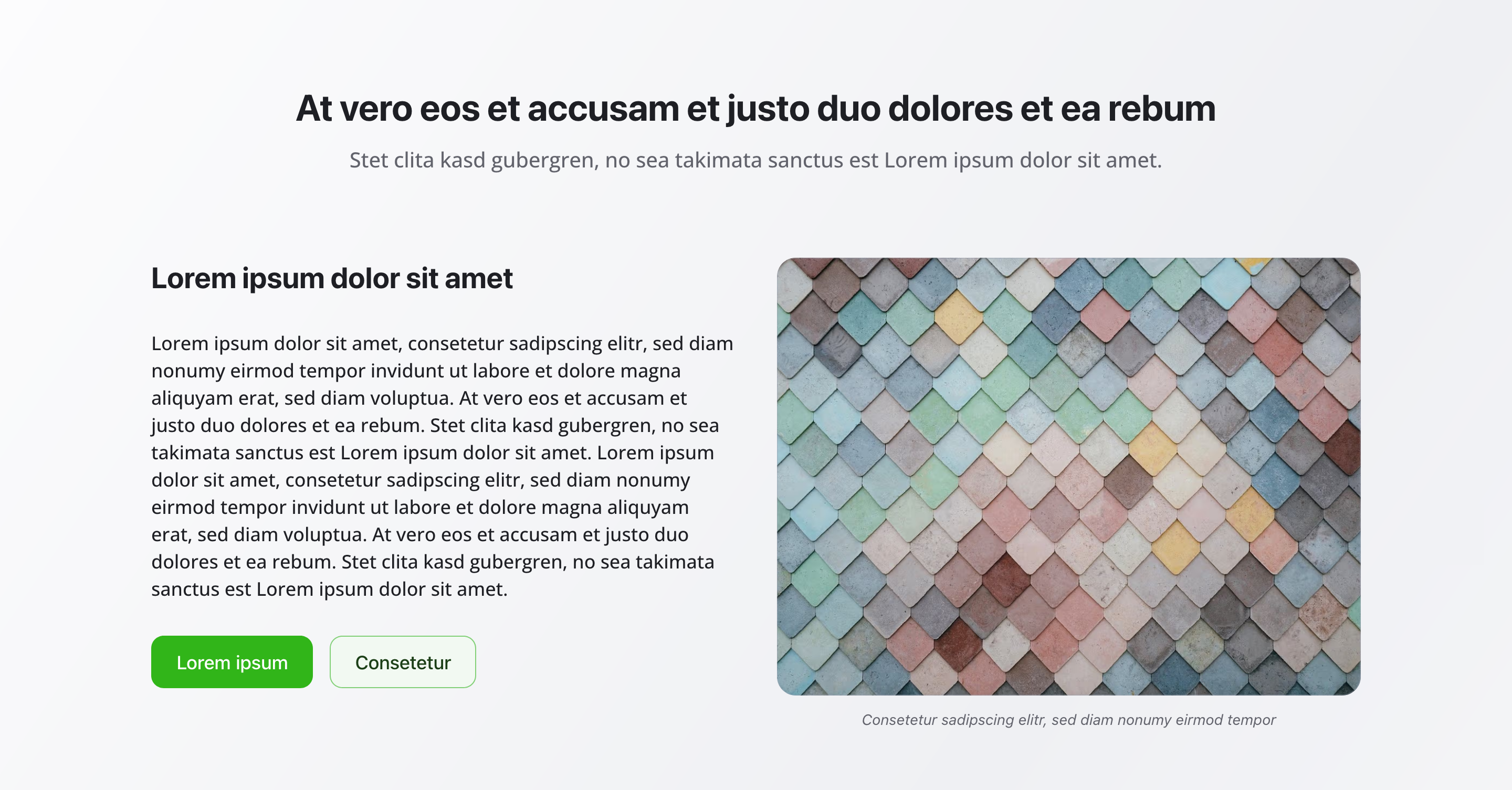
Single Image
Section titled “Single Image”- Type: Image
- Required: No
- Hidden: Yes (when Media Type is not “Single Image”)
- Purpose: Single image with alt text and caption
- Fields:
- Image: Image with hotspot support
- Alt Text: Alternative text for accessibility and SEO
- Caption: Optional caption for the image
Image Gallery
Section titled “Image Gallery”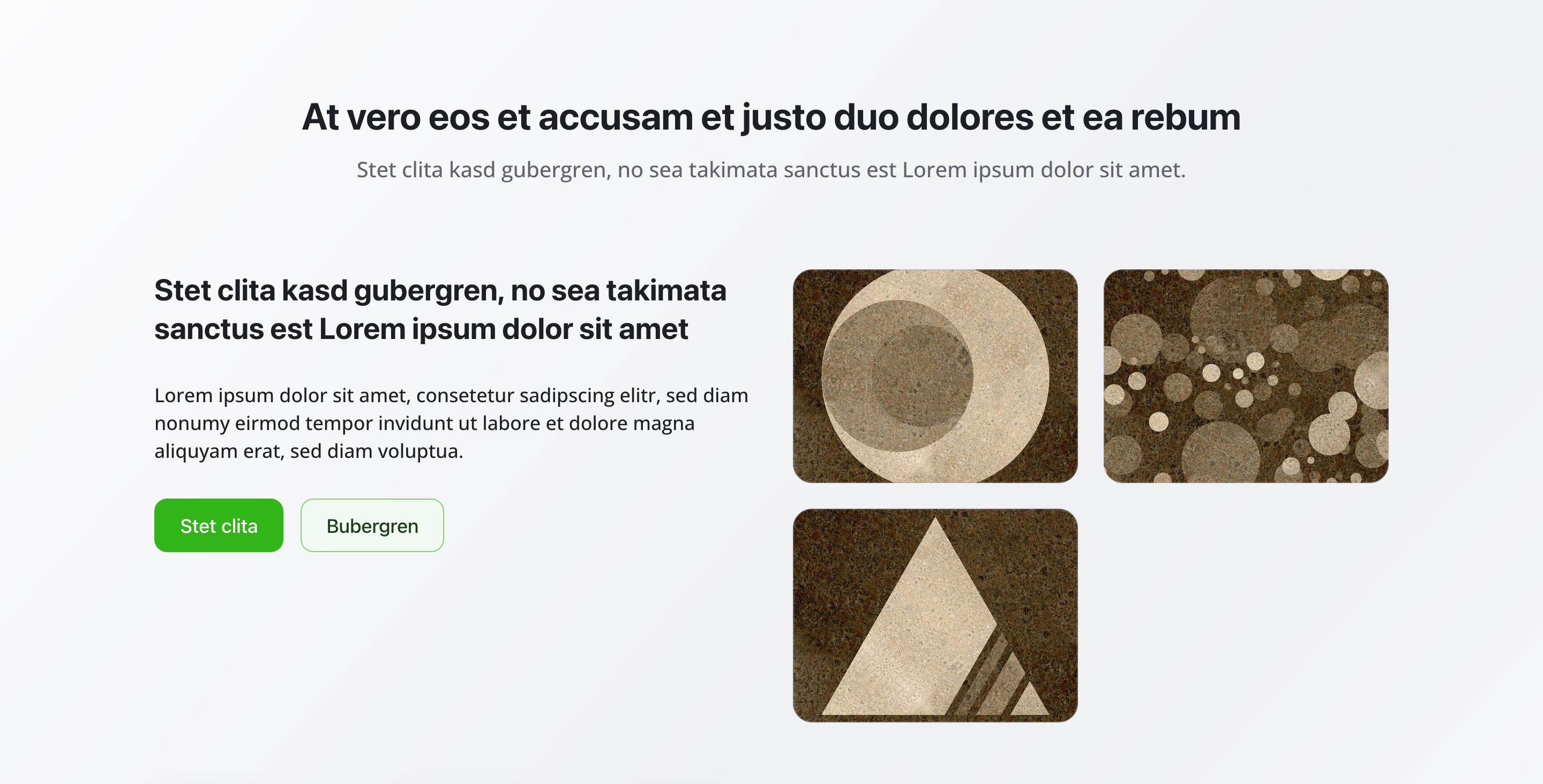
- Type: Array of Images
- Required: No
- Hidden: Yes (when Media Type is not “Image Gallery”)
- Min Count: 1
- Max Count: 20
- Purpose: Multiple images displayed as a gallery
- Fields per Image:
- Image: Gallery image with hotspot support
- Alt Text: Alternative text for accessibility and SEO
- Caption: Optional caption for the image
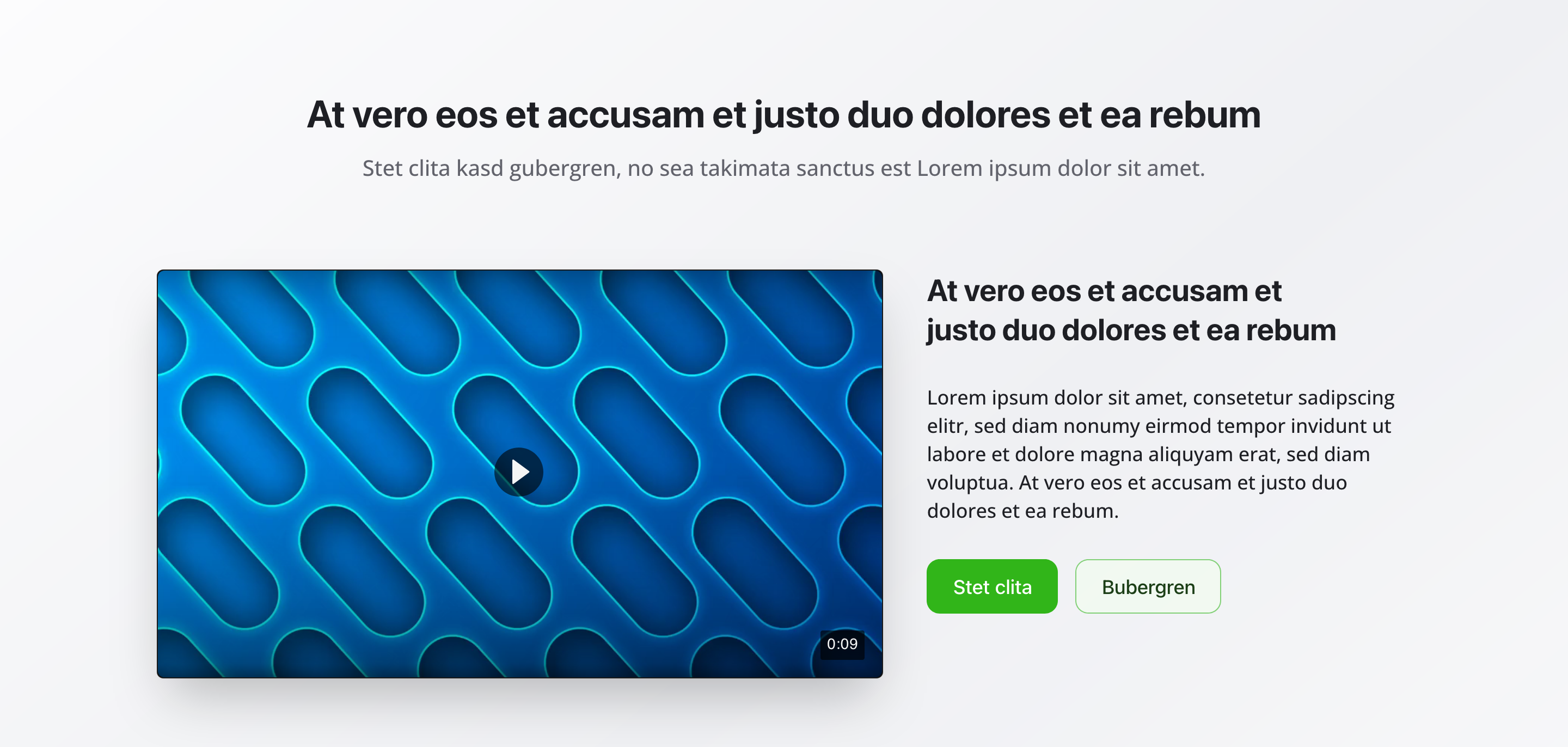
- Type: Object
- Required: No
- Hidden: Yes (when Media Type is not “Video”)
- Purpose: Video configuration for the text with media item
- Fields:
- Video File: Upload a video file (MP4, WebM, etc.) - accepts
video/* - Video URL (Alternative): Direct video URL instead of uploading a file
- Poster Image: Thumbnail image shown before video plays (with hotspot support)
- Video File: Upload a video file (MP4, WebM, etc.) - accepts
- Note: Either Video File or Video URL should be provided
Image Slider
Section titled “Image Slider”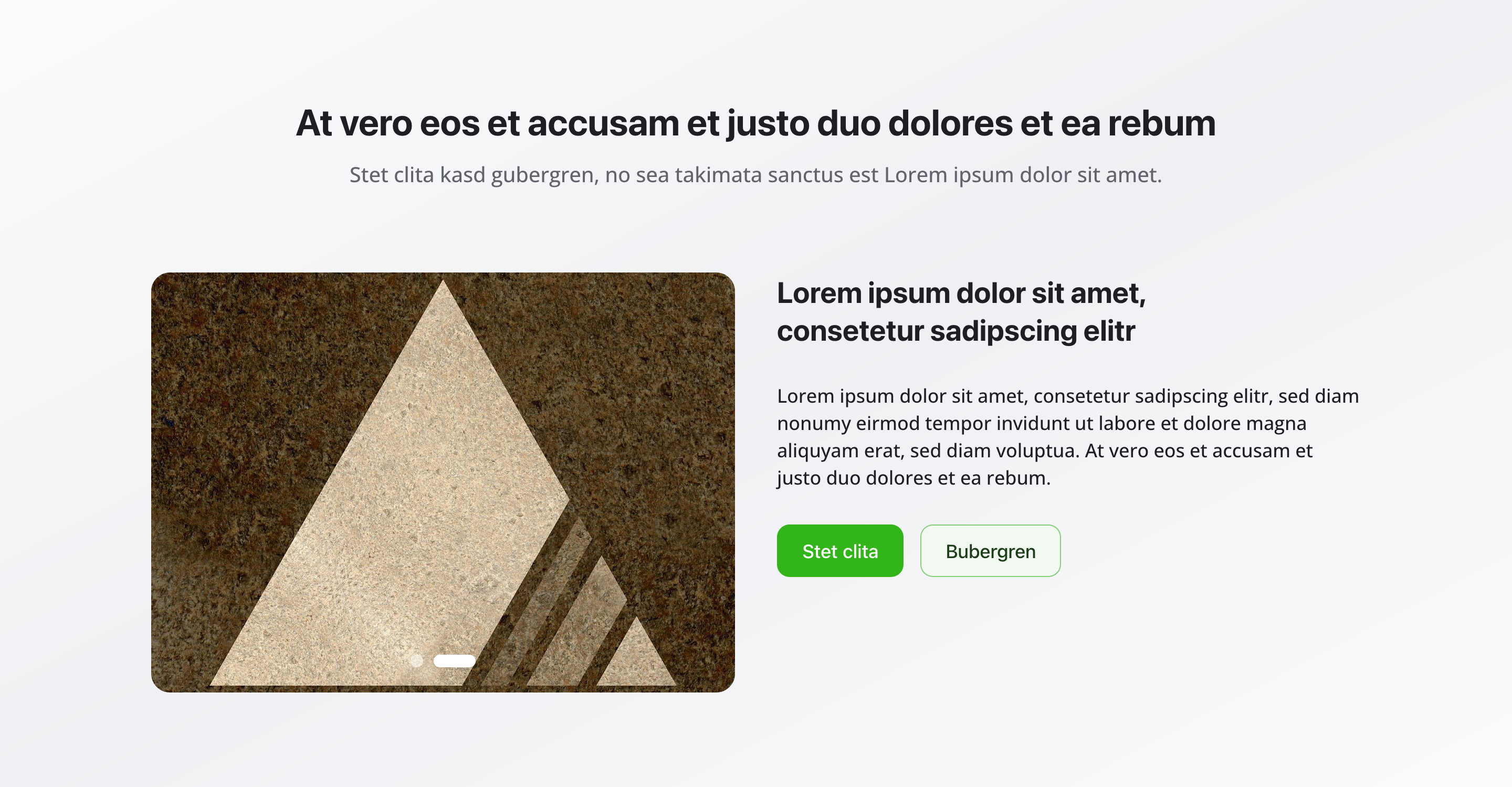
- Type: Object
- Required: No
- Hidden: Yes (when Media Type is not “Image Slider”)
- Purpose: Image slider configuration with slides, autoplay, and navigation
- Fields:
- Slides: Array of slide objects
- Min Count: 1
- Max Count: 10
- Fields per Slide:
- Slide Image: Image with hotspot support (required)
- Alt Text: Alternative text for accessibility and SEO
- Enable Autoplay: Boolean to enable automatic slide progression
- Default Value:
true
- Default Value:
- Autoplay Speed: Number of seconds between slides
- Default Value: 5
- Min Value: 1
- Max Value: 30
- Hidden: Yes (when Autoplay is disabled)
- Show Navigation Dots: Boolean to show dot navigation
- Default Value:
true
- Default Value:
- Slides: Array of slide objects
Call to Action Buttons
Section titled “Call to Action Buttons”- Type: Reference to
buttonschema - Required: No
- Purpose: Button configuration for this item
Background Color
Section titled “Background Color”- Type: Reference (
backgroundColor) - Required: No
- Purpose: Sets the background color for the entire section
Usage Example
Section titled “Usage Example”Typical Configuration
Section titled “Typical Configuration”- Headline:
Our Products - Description:
Discover our range of innovative solutions designed to meet your needs - Items:
- “Product Overview”
- Content: “Our flagship product combines quality and innovation…”
- Layout Type: Split Layout
- Split Ratio: 50/50 (Equal)
- Media Position: Media Left, Text Right
- Media Type: Single Image
- Image: Product image with alt text and caption
- “Product Gallery”
- Content: “Explore our complete product range…”
- Layout Type: Media Above, Text Below
- Media Type: Image Gallery
- Images: Array of 5 product images, each with alt text and captions
- “How It Works”
- Content: “Watch this video to see how our solution works…”
- Layout Type: Text Above, Media Below
- Media Type: Video
- Video File: Uploaded MP4 video file
- Poster Image: Thumbnail image for the video
- “Features Showcase”
- Content: “Learn about the key features that set us apart…”
- Layout Type: Split Layout
- Split Ratio: 60/40 (Text Wider)
- Media Position: Media Right, Text Left
- Media Type: Image Slider
- Slides: 6 slides showcasing different features
- Autoplay: Enabled
- Autoplay Speed: 5 seconds
- Show Navigation Dots: Enabled
- “Product Overview”
Layout Options in Detail
Section titled “Layout Options in Detail”Split Layout
Section titled “Split Layout”- 50/50 (Equal) Split: Equal division between text and media
- 60/40 (Text Wider) Split: 60% text area, 40% media area
- 60/40 (Image Wider) Split: 60% media area, 40% text area
- Media Position: Positionable left or right
Media Above, Text Below
Section titled “Media Above, Text Below”Media is displayed fully above the text. Ideal for:
- Large, meaningful images
- Videos that should grab attention
- Galleries that should be prominently presented
Text Above, Media Below
Section titled “Text Above, Media Below”Text is displayed above the media. Ideal for:
- Text-heavy content
- Explanations before visual elements
- Step-by-step guides
Best Practices
Section titled “Best Practices”- Consistency: Use similar layout types within a section for better readability
- Media selection: Choose the appropriate media type for the content
- Alt text: Always fill in alt text for images for accessibility and SEO
- Split ratio: 50/50 for balanced display, 60/40 (Text Wider) for text-heavy content, 60/40 (Image Wider) for image-heavy content
- Item count: 3-5 items are optimal for user experience
- Background color: Use background colors sparingly to ensure readability
Key Features
Section titled “Key Features”- Flexible layouts: Three different layout types for different requirements
- Various media types: Single images, galleries, videos, or sliders
- Rich text content: Full rich text editor for text content
- Multiple items: Up to 10 items per section for comprehensive content
- Individual configuration: Each item can be individually configured
Where It’s Used
Section titled “Where It’s Used”- Pages (
page)
General content pages, especially product and service pages
Technical Notes
Section titled “Technical Notes”- Each item can have different layout and media type
- Layout options are nested in a
layoutobject within each item - Media fields are conditionally displayed based on the selected
layout.mediaType - Split ratio and media position fields are only visible when Layout Type is “Split Layout”
- Rich text content uses the
richTextSectiontype - Video supports both file upload (
videoFile) and URL (videoUrl) options - Slider autoplay speed is only visible when autoplay is enabled
- Image gallery supports 1-20 images, slider supports 1-10 slides
- Background color references the global
backgroundColorschema - The section supports responsive layouts for all media types
Differences from Other Content Blocks
Section titled “Differences from Other Content Blocks”| Feature | Text With Media Section | Rich Text Section | Gallery Section |
|---|---|---|---|
| Structure | Fixed (Text + Media) | Flexible | Media only |
| Layout Options | Yes (3 types) | No | No |
| Media Types | Yes (4 types) | Images only | Images only |
| Rich Text | Yes (per item) | Yes (full) | No |
| Multiple Items | Yes (1-10) | No | No |
| Videos | Yes | No | No |
| Slider | Yes | No | No |
| Usage | Structured combinations | Flowing text | Image galleries |