Create a New Page
Learn step by step how to create, fill out, and publish a new page in Sanity Studio.
-
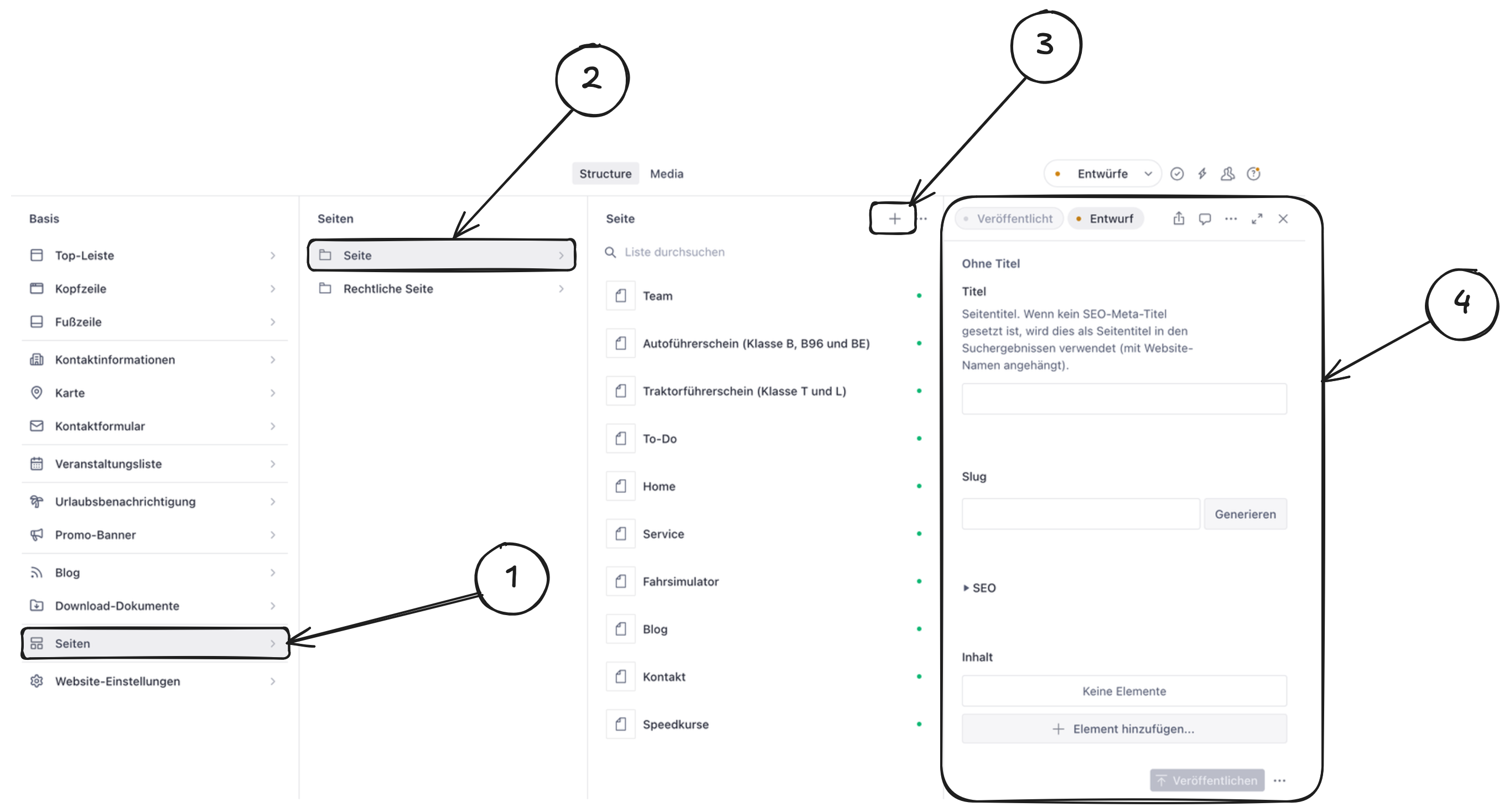
Open the “Pages” section in the left sidebar. There you will find all existing pages of your website.
-
Select the document type “Page” or “Legal Page.”
-
Click the “+” icon in the top-right corner (Create New Document).
-
Enter the page title. Use a clear name (for example, “About Us” or “Services”) so you can easily find the page later.
-
Set the slug (URL path). The slug defines the page URL. Click “Generate” to create a URL automatically (for example, /about-us). You can adjust the slug if needed.
-
Fill in the most important page fields. Depending on the project, this may include page title, short description, header settings, or initial content sections.
-
Add the first components. Scroll to the content area and click Add Element to insert components such as a hero, text block, or gallery.
-
Review your content in the editor. Check texts, images, component order, and links.
-
Click “Publish.” Only then will the new page be visible on your live website.