Edit Existing Content
This content is for v1.0. Switch to the latest version for up-to-date documentation.
Learn how to find, edit, and publish existing website content in Sanity Studio.
-
Navigate to the content you want to edit. For example, in the left sidebar, click Pages to access all website pages.
-
Select the content type. Under Pages, click Page to see the list of available pages.
-
Choose the specific page you want to edit. The page editor will open on the right side of the screen.
-
Select the component you want to modify. Scroll through the page content and click on the component you’d like to change.
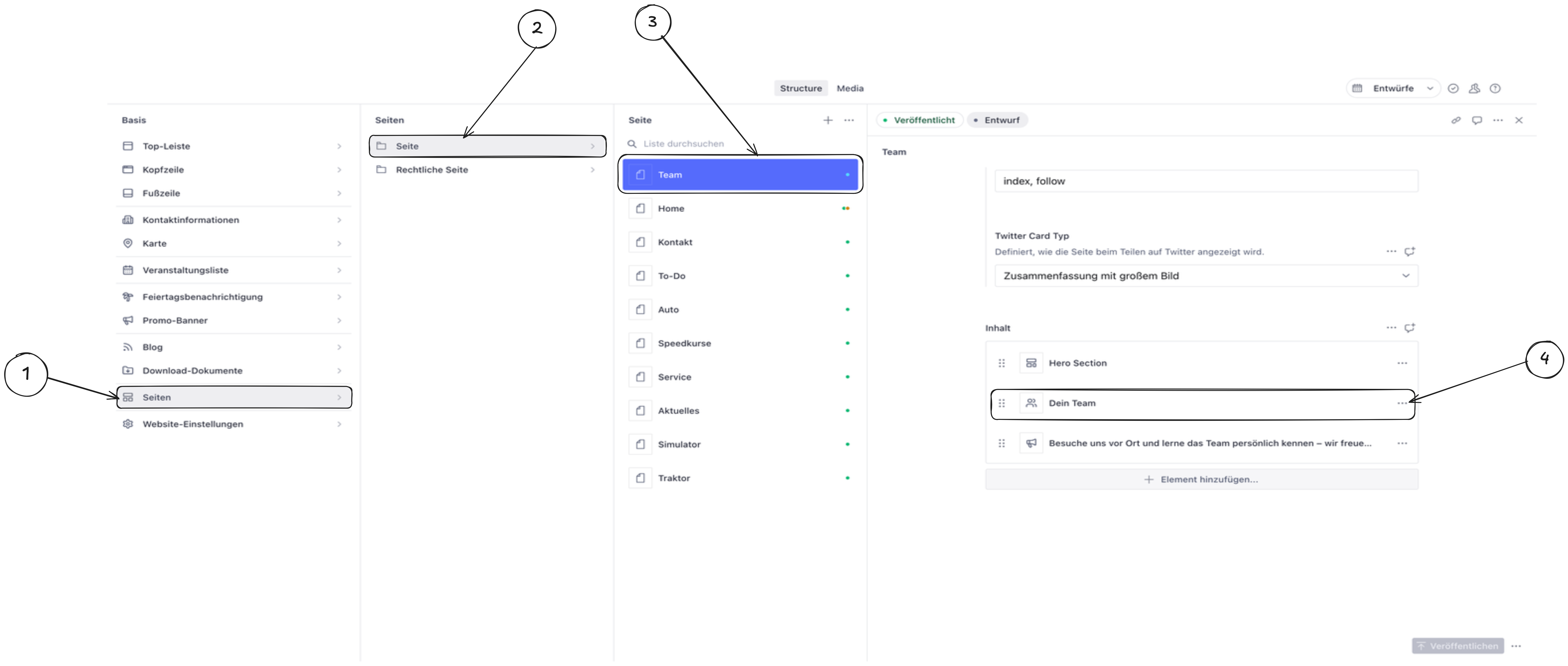
Sanity Studio edit existing content example
-
Edit the component content. The component editor will open. Click into any text field, image, or setting to make your changes. Your edits are saved automatically as a draft.
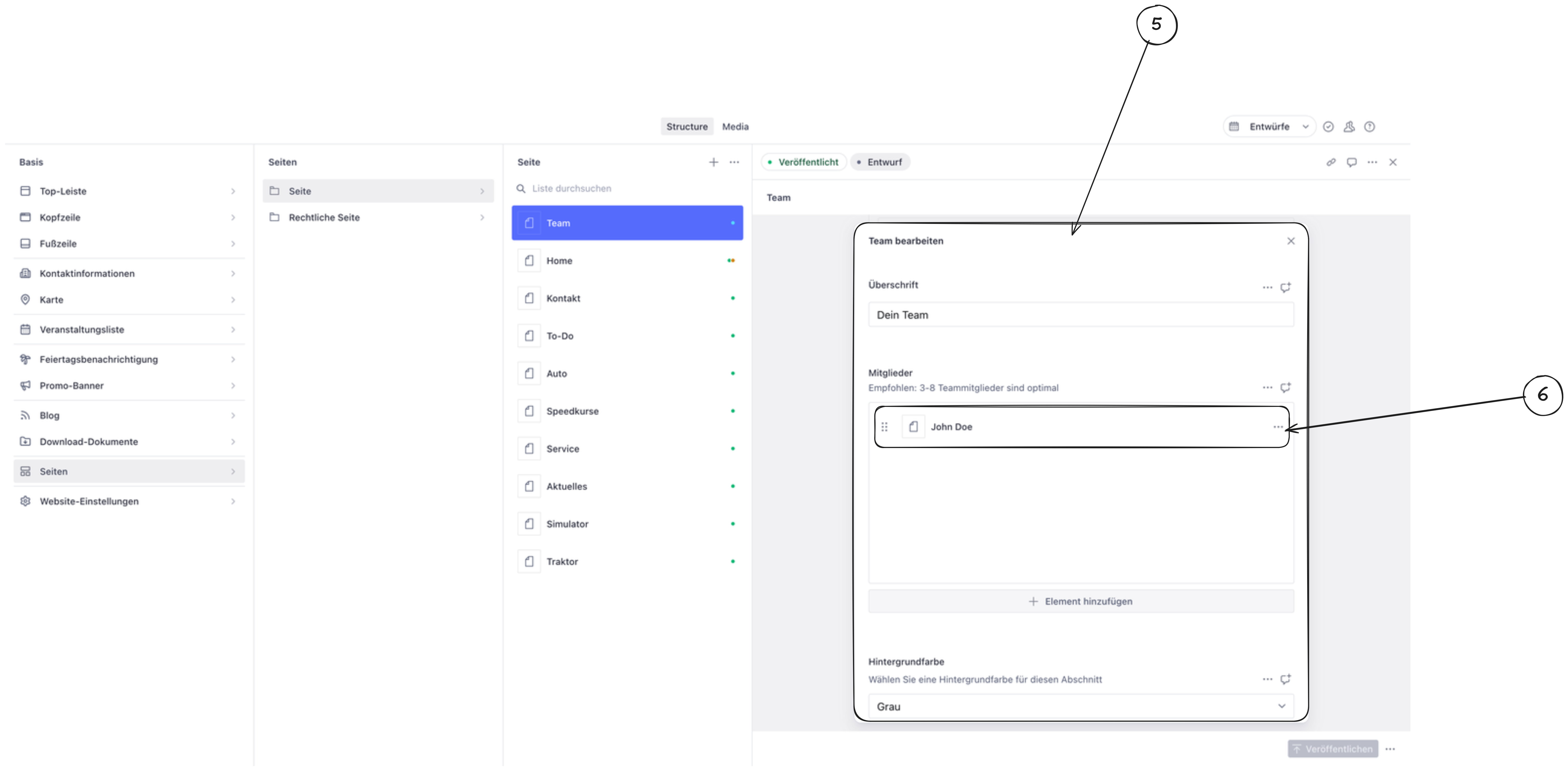
Sanity Studio edit component content example
-
Edit items within a component (if applicable). Some components contain multiple items (like team members in a Team section, or images in a Gallery). Click on an individual item to edit it.
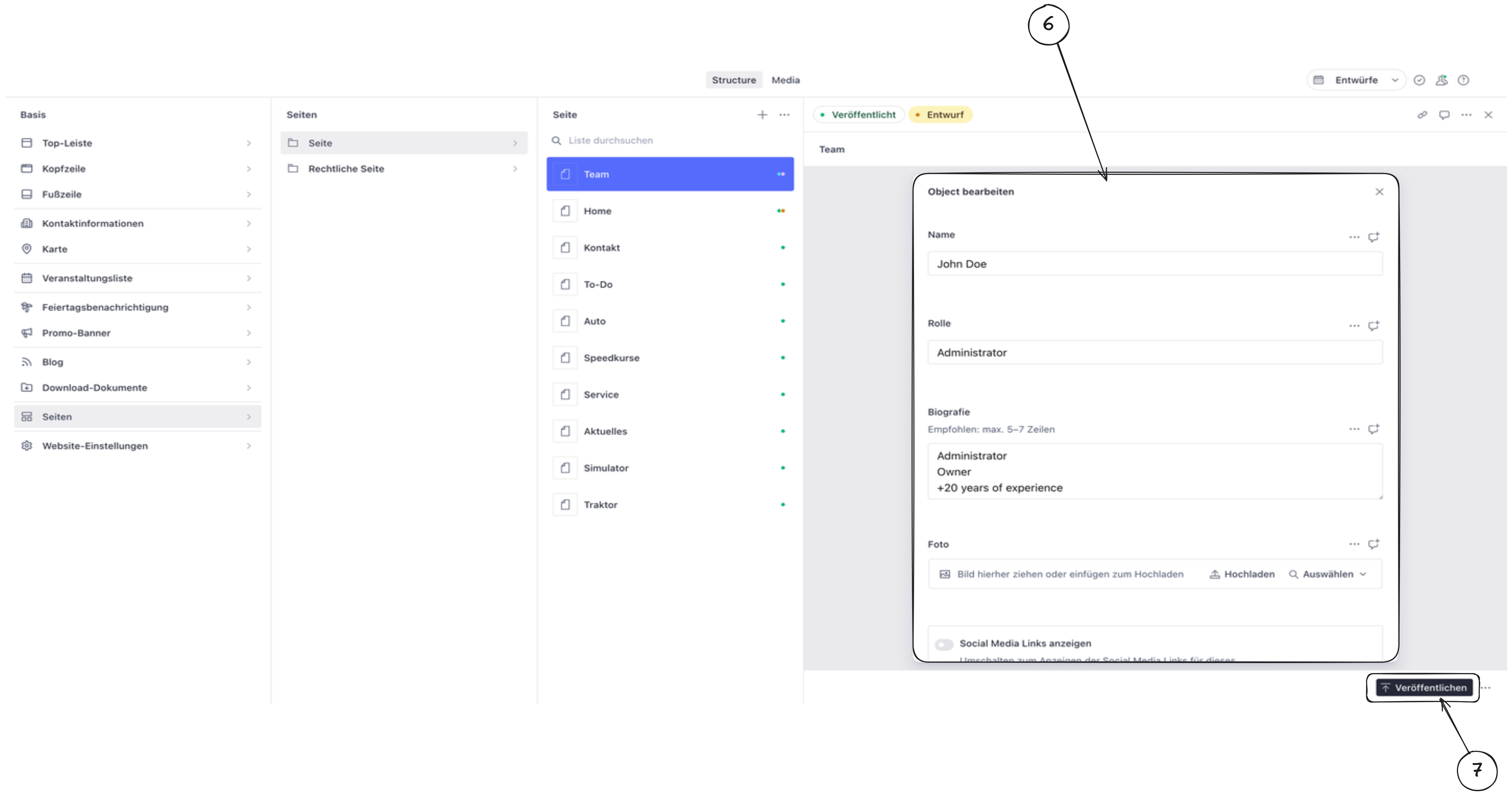
Sanity Studio edit existing component item example
-
Publish your changes. Once you’re satisfied with your edits, click the Publish button at the bottom of the editor to make your changes visible on the live website.