Add New Components to a Page
This content is for v1.0. Switch to the latest version for up-to-date documentation.
You can add entire sections (like Hero sections, Galleries, or Testimonials) to any page.
-
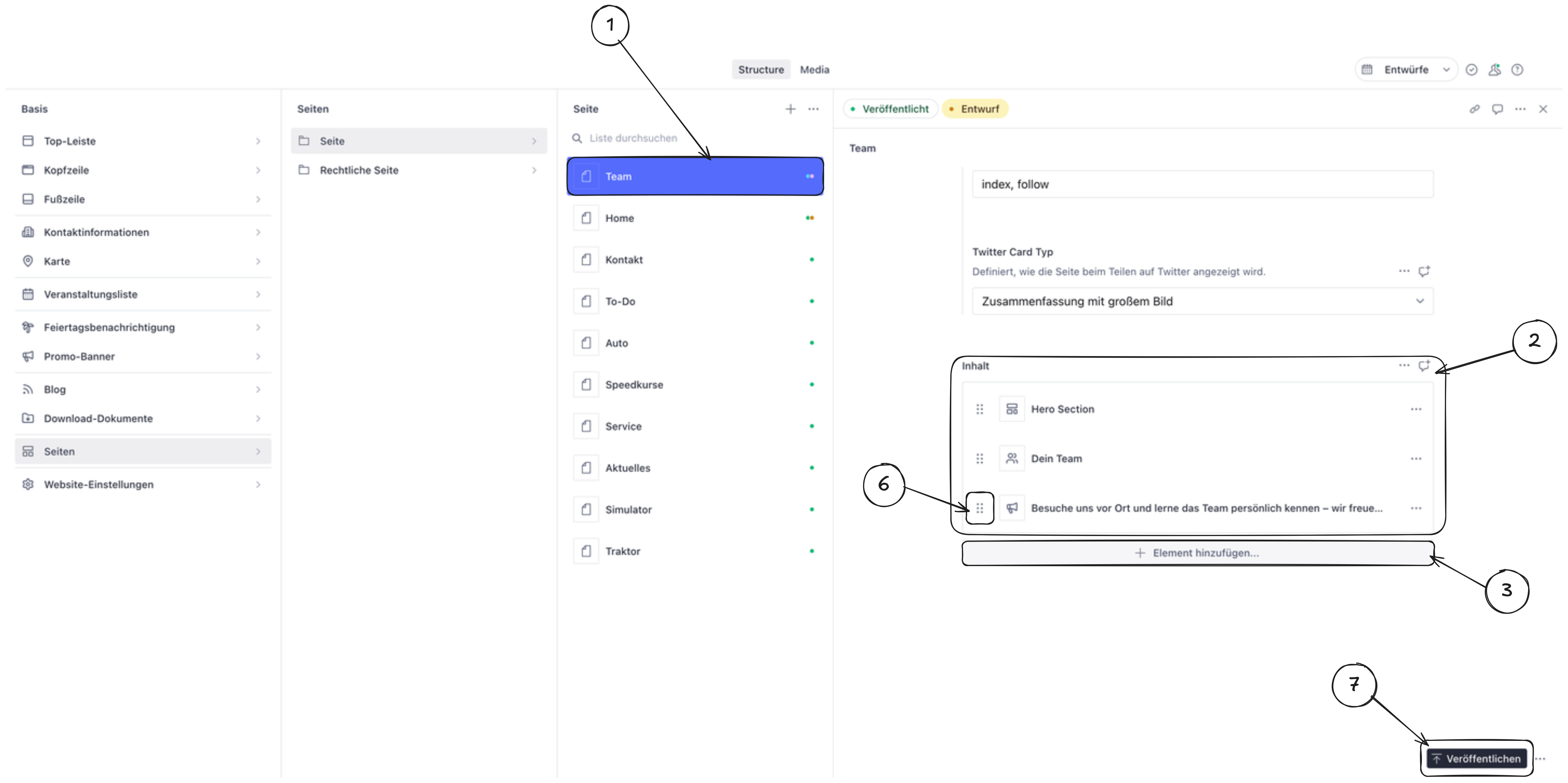
Open the page where you want to add a component by navigating through the left sidebar.
-
Scroll to the bottom of the page content area in the editor.
-
Click the “Add item” button (usually marked with a + icon).
-
Select the component type you want to add from the list (for example: Hero section, Gallery, Testimonials, or Text block).
-
Add content to your new component (see step 6 below).
-
Reorder if needed. The new component appears at the bottom of the page. You can drag it to a different position by clicking and holding the drag handle (usually on the left side of the component).
-
Publish the page to make the new component visible on your website.