Text With Media Section
This content is for v1.0. Switch to the latest version for up-to-date documentation.
Overview
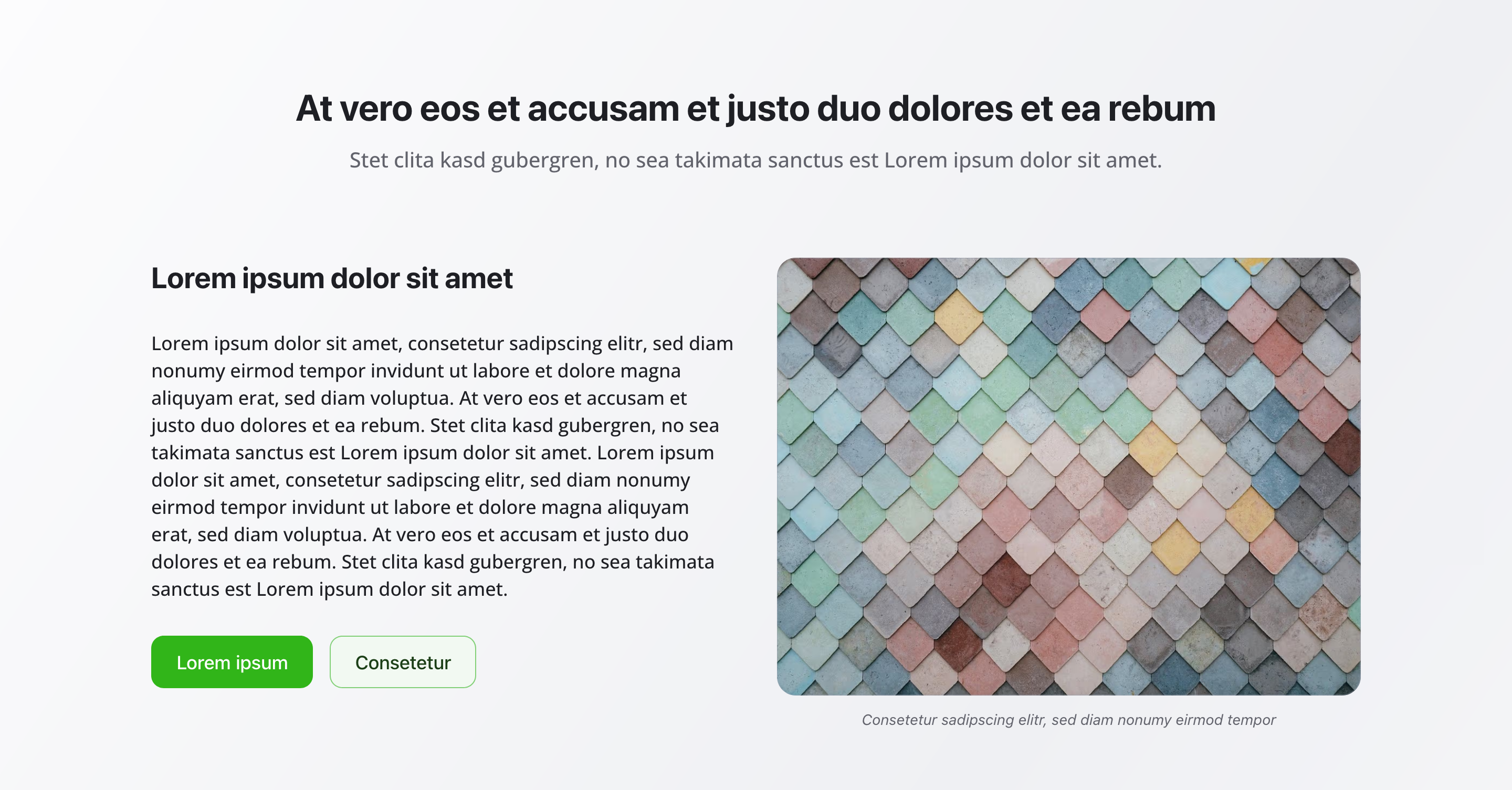
Section titled “Overview”The Text With Media Section combines text and media (images, videos, galleries, sliders) in various layouts. It’s perfect for pages that need structured text-media combinations with flexible layout options for different content types.
Fields
Section titled “Fields”Headline
Section titled “Headline”- Type: String
- Required: No
- Purpose: Main heading for the entire section
- Example:
Our ProductsorOur Services
Description
Section titled “Description”- Type: Text
- Required: No
- Purpose: Description for the entire section
- Example:
Discover our range of innovative solutions designed to meet your needs
- Type: Array of
textWithMediaItemobjects - Required: Yes
- Min Count: 1
- Max Count: 10
- Purpose: List of text-media items
Each text with media item contains:
Item Headline
Section titled “Item Headline”- Type: String
- Required: No
- Purpose: Main heading for this item
- Example:
Product Overview
Content
Section titled “Content”- Type: Rich Text Section (
richTextSection) - Required: No
- Purpose: Text content in rich text format
- Note: Supports full formatting, images, links, etc.
Layout Options
Section titled “Layout Options”- Type: Object
- Required: No
- Purpose: Layout configuration for text and media
Layout Type
Section titled “Layout Type”- Type: String
- Default Value:
split - Purpose: Select the layout style for this item
- Options:
- Split Layout (
split) – Text and media side by side - Media Above, Text Below (
mediaAbove) – Media above, text below - Text Above, Media Below (
textAbove) – Text above, media below
- Split Layout (
Split Ratio
Section titled “Split Ratio”- Type: String
- Default Value:
50-50 - Hidden: Yes (when Layout Type is not “Split Layout”)
- Purpose: Split ratio for text and media (only for Split Layout)
- Options:
- 50/50 (Equal) (
50-50) – Equal split between text and media - 60/40 (Text Wider) (
60-40-text) – 60% text, 40% media - 60/40 (Image Wider) (
60-40-image) – 60% media, 40% text
- 50/50 (Equal) (
Split Media Position
Section titled “Split Media Position”- Type: String
- Default Value:
left - Hidden: Yes (when Layout Type is not “Split Layout”)
- Purpose: Position of media relative to text (only for Split Layout)
- Options:
- Media Left, Text Right (
left) - Media Right, Text Left (
right)
- Media Left, Text Right (
Media Type
Section titled “Media Type”- Type: String
- Default Value:
image - Purpose: Choose which media should be displayed alongside the text
- Options:
- Single Image (
image) - Image Gallery (
imageGallery) - Video (
video) - Image Slider (
slider)
- Single Image (
Media Fields
Section titled “Media Fields”Fields are conditionally displayed based on the selected Media Type.
Single Image
Section titled “Single Image”- Type: Image
- Required: No
- Hidden: Yes (when Media Type is not “Single Image”)
- Purpose: Single image with alt text and caption
- Fields:
- Image: Image with hotspot support
- Alt Text: Alternative text for accessibility and SEO
- Caption: Optional caption for the image
Image Gallery
Section titled “Image Gallery”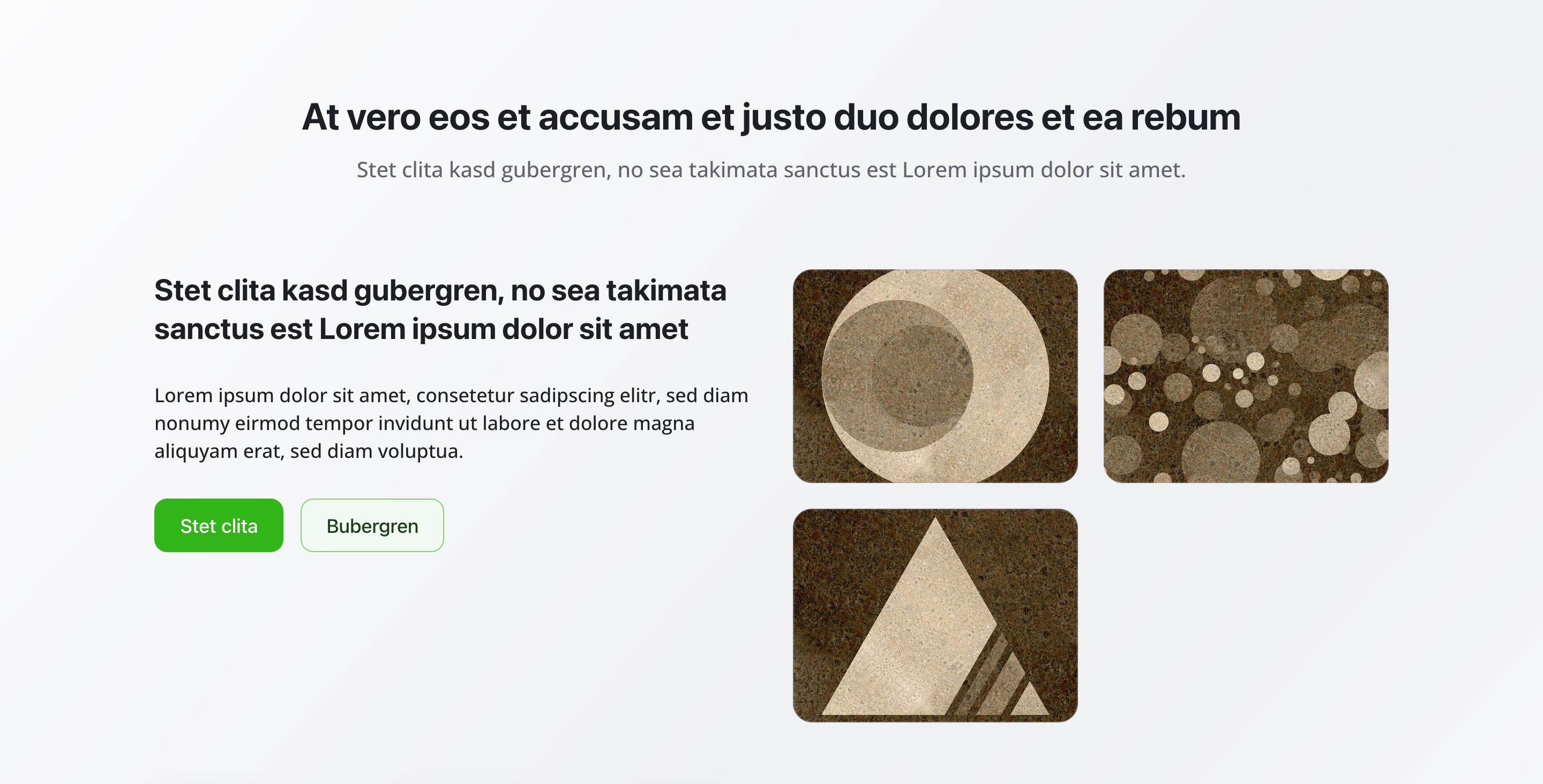
- Type: Array of Images
- Required: No
- Hidden: Yes (when Media Type is not “Image Gallery”)
- Min Count: 1
- Max Count: 20
- Purpose: Multiple images displayed as a gallery
- Fields per Image:
- Image: Gallery image with hotspot support
- Alt Text: Alternative text for accessibility and SEO
- Caption: Optional caption for the image
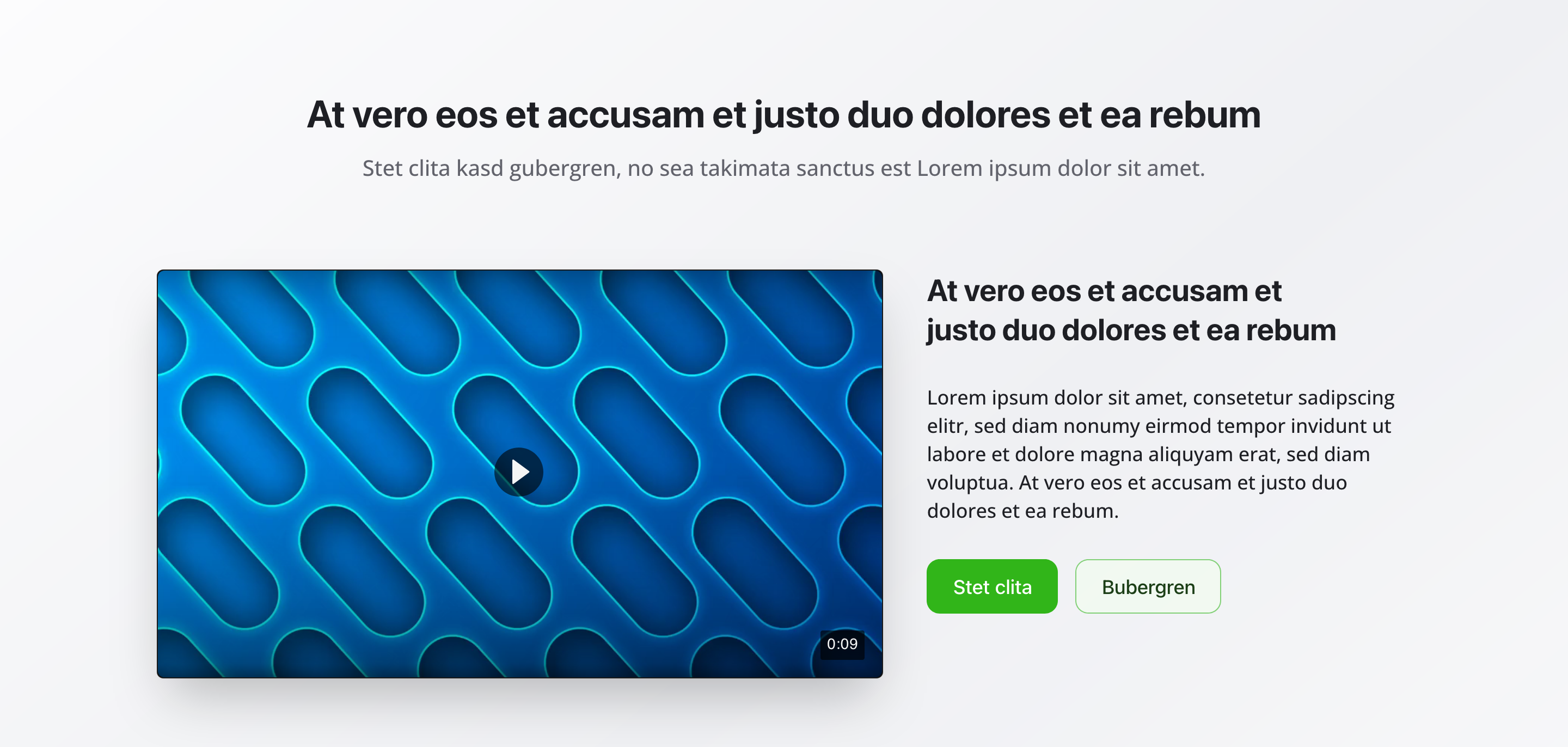
- Type: Object
- Required: No
- Hidden: Yes (when Media Type is not “Video”)
- Purpose: Video configuration for the text with media item
- Fields:
- Video File: Upload a video file (MP4, WebM, etc.) - accepts
video/* - Video URL (Alternative): Direct video URL instead of uploading a file
- Poster Image: Thumbnail image shown before video plays (with hotspot support)
- Video File: Upload a video file (MP4, WebM, etc.) - accepts
- Note: Either Video File or Video URL should be provided
Image Slider
Section titled “Image Slider”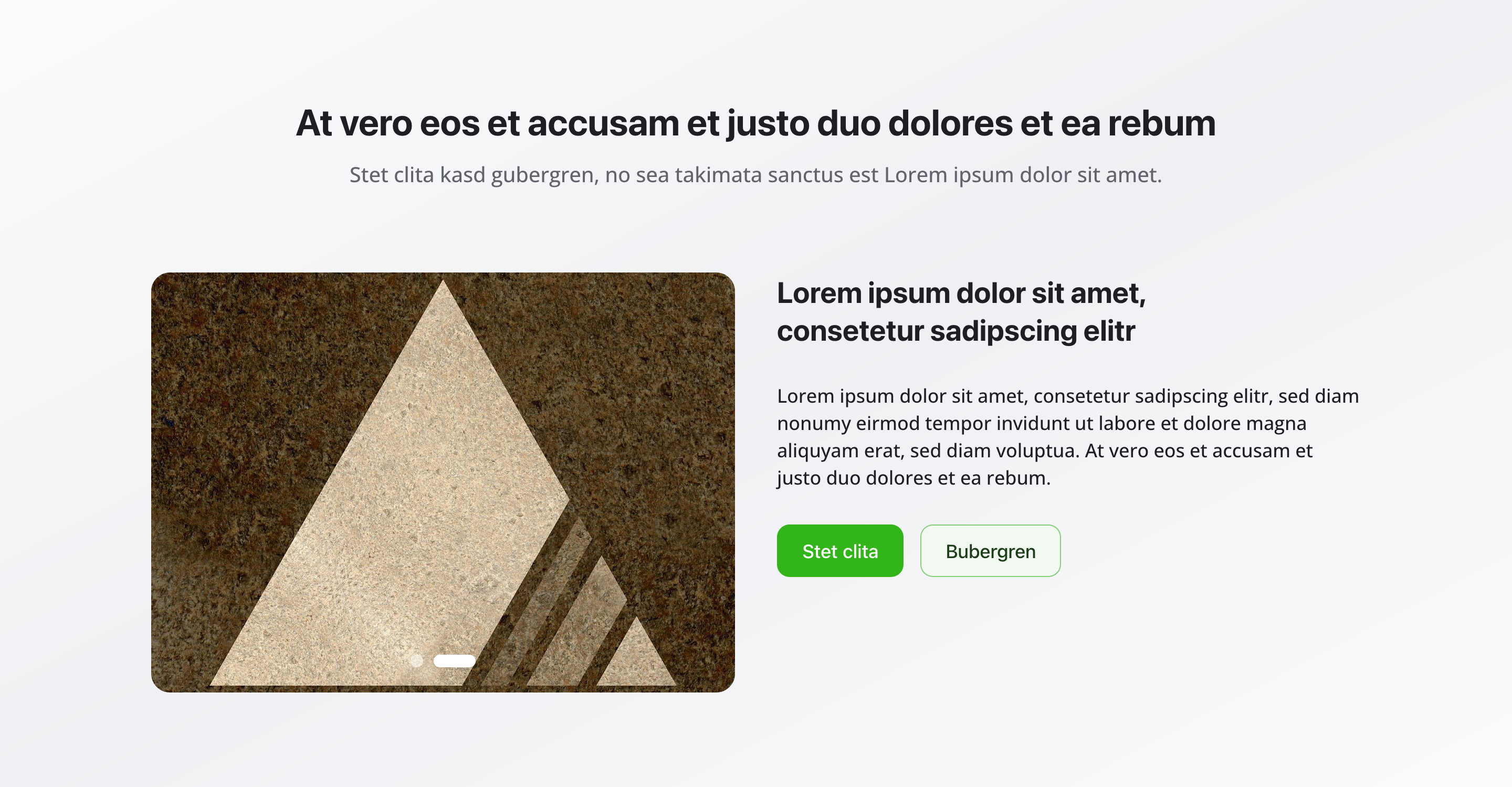
- Type: Object
- Required: No
- Hidden: Yes (when Media Type is not “Image Slider”)
- Purpose: Image slider configuration with slides, autoplay, and navigation
- Fields:
- Slides: Array of slide objects
- Min Count: 1
- Max Count: 10
- Fields per Slide:
- Slide Image: Image with hotspot support (required)
- Alt Text: Alternative text for accessibility and SEO
- Enable Autoplay: Boolean to enable automatic slide progression
- Default Value:
true
- Default Value:
- Autoplay Speed: Number of seconds between slides
- Default Value: 5
- Min Value: 1
- Max Value: 30
- Hidden: Yes (when Autoplay is disabled)
- Show Navigation Dots: Boolean to show dot navigation
- Default Value:
true
- Default Value:
- Slides: Array of slide objects
Call to Action Buttons
Section titled “Call to Action Buttons”- Type: Reference to
buttonschema - Required: No
- Purpose: Button configuration for this item
Background Color
Section titled “Background Color”- Type: Reference (
backgroundColor) - Required: No
- Purpose: Sets the background color for the entire section
Usage Example
Section titled “Usage Example”Typical Configuration
Section titled “Typical Configuration”- Headline:
Our Products - Description:
Discover our range of innovative solutions designed to meet your needs - Items:
- “Product Overview”
- Content: “Our flagship product combines quality and innovation…”
- Layout Type: Split Layout
- Split Ratio: 50/50 (Equal)
- Media Position: Media Left, Text Right
- Media Type: Single Image
- Image: Product image with alt text and caption
- “Product Gallery”
- Content: “Explore our complete product range…”
- Layout Type: Media Above, Text Below
- Media Type: Image Gallery
- Images: Array of 5 product images, each with alt text and captions
- “How It Works”
- Content: “Watch this video to see how our solution works…”
- Layout Type: Text Above, Media Below
- Media Type: Video
- Video File: Uploaded MP4 video file
- Poster Image: Thumbnail image for the video
- “Features Showcase”
- Content: “Learn about the key features that set us apart…”
- Layout Type: Split Layout
- Split Ratio: 60/40 (Text Wider)
- Media Position: Media Right, Text Left
- Media Type: Image Slider
- Slides: 6 slides showcasing different features
- Autoplay: Enabled
- Autoplay Speed: 5 seconds
- Show Navigation Dots: Enabled
- “Product Overview”
Layout Options in Detail
Section titled “Layout Options in Detail”Split Layout
Section titled “Split Layout”- 50/50 (Equal) Split: Equal division between text and media
- 60/40 (Text Wider) Split: 60% text area, 40% media area
- 60/40 (Image Wider) Split: 60% media area, 40% text area
- Media Position: Positionable left or right
Media Above, Text Below
Section titled “Media Above, Text Below”Media is displayed fully above the text. Ideal for:
- Large, meaningful images
- Videos that should grab attention
- Galleries that should be prominently presented
Text Above, Media Below
Section titled “Text Above, Media Below”Text is displayed above the media. Ideal for:
- Text-heavy content
- Explanations before visual elements
- Step-by-step guides
Best Practices
Section titled “Best Practices”- Consistency: Use similar layout types within a section for better readability
- Media selection: Choose the appropriate media type for the content
- Alt text: Always fill in alt text for images for accessibility and SEO
- Split ratio: 50/50 for balanced display, 60/40 (Text Wider) for text-heavy content, 60/40 (Image Wider) for image-heavy content
- Item count: 3-5 items are optimal for user experience
- Background color: Use background colors sparingly to ensure readability
Key Features
Section titled “Key Features”- Flexible layouts: Three different layout types for different requirements
- Various media types: Single images, galleries, videos, or sliders
- Rich text content: Full rich text editor for text content
- Multiple items: Up to 10 items per section for comprehensive content
- Individual configuration: Each item can be individually configured
Where It’s Used
Section titled “Where It’s Used”- Pages (
page)
General content pages, especially product and service pages
Technical Notes
Section titled “Technical Notes”- Each item can have different layout and media type
- Layout options are nested in a
layoutobject within each item - Media fields are conditionally displayed based on the selected
layout.mediaType - Split ratio and media position fields are only visible when Layout Type is “Split Layout”
- Rich text content uses the
richTextSectiontype - Video supports both file upload (
videoFile) and URL (videoUrl) options - Slider autoplay speed is only visible when autoplay is enabled
- Image gallery supports 1-20 images, slider supports 1-10 slides
- Background color references the global
backgroundColorschema - The section supports responsive layouts for all media types
Differences from Other Content Blocks
Section titled “Differences from Other Content Blocks”| Feature | Text With Media Section | Rich Text Section | Gallery Section |
|---|---|---|---|
| Structure | Fixed (Text + Media) | Flexible | Media only |
| Layout Options | Yes (3 types) | No | No |
| Media Types | Yes (4 types) | Images only | Images only |
| Rich Text | Yes (per item) | Yes (full) | No |
| Multiple Items | Yes (1-10) | No | No |
| Videos | Yes | No | No |
| Slider | Yes | No | No |
| Usage | Structured combinations | Flowing text | Image galleries |